
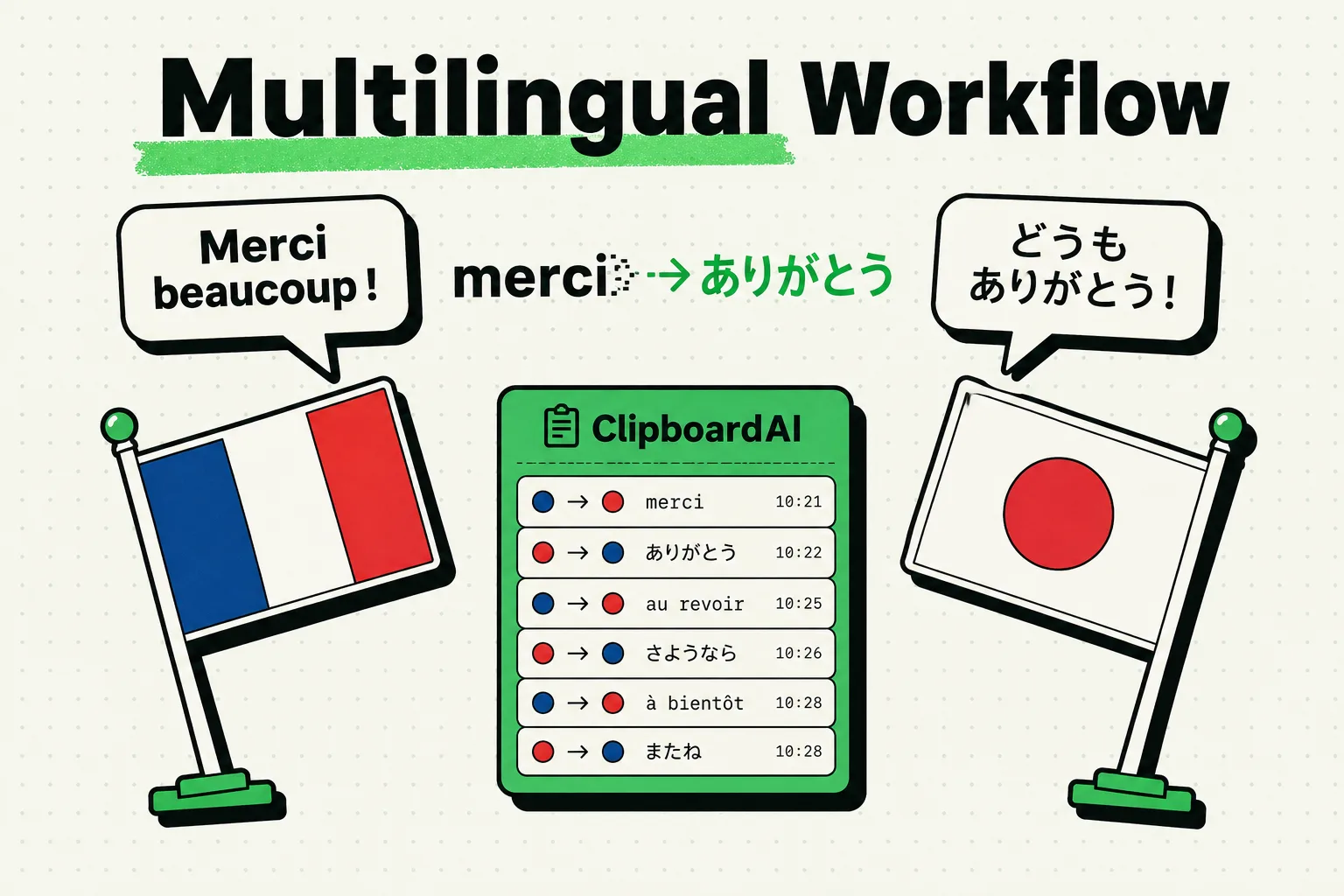
Translators and interpreters can save up to five hours a week by using a local clipboard manager like ClipboardAI to manage multilingual text strings, client glossaries, and target segments. Instead of constantly toggling between dictionary apps, source PDFs, web browsers, and word processors, a clipboard manager stores a chronological log of every phrase, term, and link you copy. This allows you to build a temporary reference library as you translate, boosting speed and accuracy.
The Multilingual Copy-Paste Challenge
Translation and localization work are inherently text-heavy and require constant research. During a standard assignment, a translator operates across a fragmented digital layout:
- Source documents (PDFs, Word documents, websites, or emails)
- Online dictionaries, termbases, and translation search engines (Linguee, WordReference, ProZ)
- Specialized computer-assisted translation (CAT) tools or text editors
- Client-specific glossaries and style sheets
Juggling this ecosystem requires a high volume of copy-paste actions. You copy a source term to look it up in a dictionary, copy the correct translation, copy a reference URL to verify context, and then paste the final choice into your target document.
Without a clipboard history manager, the standard single-item clipboard forces you to switch apps for every individual word. If you copy a definition, you overwrite the client’s target sentence you just translated. This constant app-switching breaks your concentration, slows down your typing speed, and increases the likelihood of copy-paste mistakes.
3 Ways Clipboard History Optimizes Translation Workflows
By using ClipboardAI to save your copy timeline, you can build a more fluid, multi-app workspace:
1. Temporary Glossaries on the Go
When translating a document with specialized or technical vocabulary, you often come across new terms that you need to use repeatedly throughout the project.
Instead of looking up the term in your database every time it appears, copy the translation once. It is saved in your clipboard history. You can access it anytime from your custom keyboard, ensuring term consistency across the entire document without needing to build a formal termbase for a short project.
2. Streamlining Dual-Language Editing
When comparing source and target documents side-by-side on your iPhone or iPad, you often need to move segments back and forth.
With a clipboard manager, you can copy three or four source paragraphs in sequence, switch to your editing software, and paste them in order. You do not need to switch back and forth for every single paragraph, allowing you to edit long texts with minimal disruption.
3. Collecting Reference Links and Context
During the research phase of a translation, you copy multiple reference links, definitions, and context clues from the web.
ClipboardAI automatically logs these links and categorizes them. When you write your translator’s notes or send questions to the client, your clipboard history provides a complete, organized list of all the source materials you used during research, ready to be pasted into your email draft.
Value Artifact: Translator's Multilingual Snippet Kit
These templates help translators format localized correspondence, track client glossaries, and structure translation notes quickly from their custom keyboard:
1. Project Management and Client Templates
-- Project Delivery Note --
"Dear [Client Name], please find attached the translated files for project [Project Name/ID] (Source: [Source Lang] -> Target: [Target Lang]). The translation has been formatted according to your style guidelines. Let me know if you have any questions or require revisions. Best, [My Name]."
-- Context Clarification --
"Hi [Name], during the translation of [Document Name], I noted the term '[Term]' on page [Page]. Could you clarify if this refers to [Context Option A] or [Context Option B] in this specific instance? Thank you!"2. Multi-Language Glossary and Query Matrix
| Glossary Target | Local Pinned Template | Best Used For |
|---|---|---|
| Terminology Log | "Source Term: [Term] \| Target Translation: [Translation]\nContext: [Context sentence]\nSource Database: [e.g., IATE / Linguee]\nNotes: [Grammar/Usage notes]" | Building an active glossary card during research to maintain consistency. |
| Translation Query | "Segment ID: [ID] \| Source Text: \"[Source Quote]\"\nProposed Translation: \"[Target Quote]\"\nIssue: [Grammar ambiguity / regional terminology concern]" | Collecting translation queries to send to clients in a batch at the end of the day. |
| Formatting Rules | "Client: [Name] \| Locale: [e.g., ES-MX]\nDate/Time: [DD/MM/YYYY or MM/DD/YYYY]\nDecimals: [Comma or Point] \| Currency: [Symbol]\nExcluded Terms: [Non-translatable names]" | Quick reference rules pinned to the top of your keyboard for localized projects. |
How Specialized CAT Tools Compare to ClipboardAI
| Workflow Component | CAT Tools (Trados, MemoQ) | ClipboardAI |
|---|---|---|
| Primary Purpose | Long-term translation memory and database management | Speeding up general text movement and communications across everyday apps |
| Database Type | Structured translation memories (.TMX) | Dynamic, searchable local clipboard history |
| Vocabulary Recall | Automatic segment matching | Instant search across all copied terms and glossary entries |
| Platform Portability | Desktop-focused; complex interface | Works on iPhone, iPad, and Mac via custom keyboard |
| Privacy Boundaries | Cloud-based or local project vaults | Local-only, sandboxed database (ideal for NDAs) |
Honest Caveats: Privacy, NDAs, and App Limitations
To protect your professional reputation and client confidentiality, follow these rules:
- CAT Software is Still Primary: A clipboard manager is a productivity utility to speed up copy-paste actions across messaging apps, browsers, and text editors. It does not replace professional Translation Memory (TM) systems or CAT software. Use CAT tools for translation segment databases, and ClipboardAI for messaging, research, and quick notes.
- Strict NDA Compliance: If you are translating highly sensitive, pre-patent, or NDA-protected documents (such as clinical trial results, mergers and acquisitions filings, or secure legal cases), evaluate your firm’s security requirements. Since ClipboardAI processes all copy history on-device, it is safer than cloud services. However, you should clear your history database at the end of each work session.
- Exclusion App Setup: Set ClipboardAI to ignore secure document editors or password databases to prevent sensitive drafts from being stored in your general clip history.
Frequently Asked Questions
Can I copy formatting styles like bold and italics?
Yes. ClipboardAI preserves rich text formatting. If you copy a localized term that has specific bolding or italicization, it will paste with those styles intact, provided the destination app supports rich text inputs.
How do I use the translation clipboard on my iPad?
Install the iOS app, enable the keyboard extension in your iPad settings, and turn on full access. You can then access your history list and pinned glossaries alongside your document editor in Split View or Slide Over.
Is ClipboardAI safe to use with client manuscripts?
Yes. Because ClipboardAI does not upload your copied data to any cloud storage or external translation servers, your clients' unpublished manuscripts remain secure on your local device.