
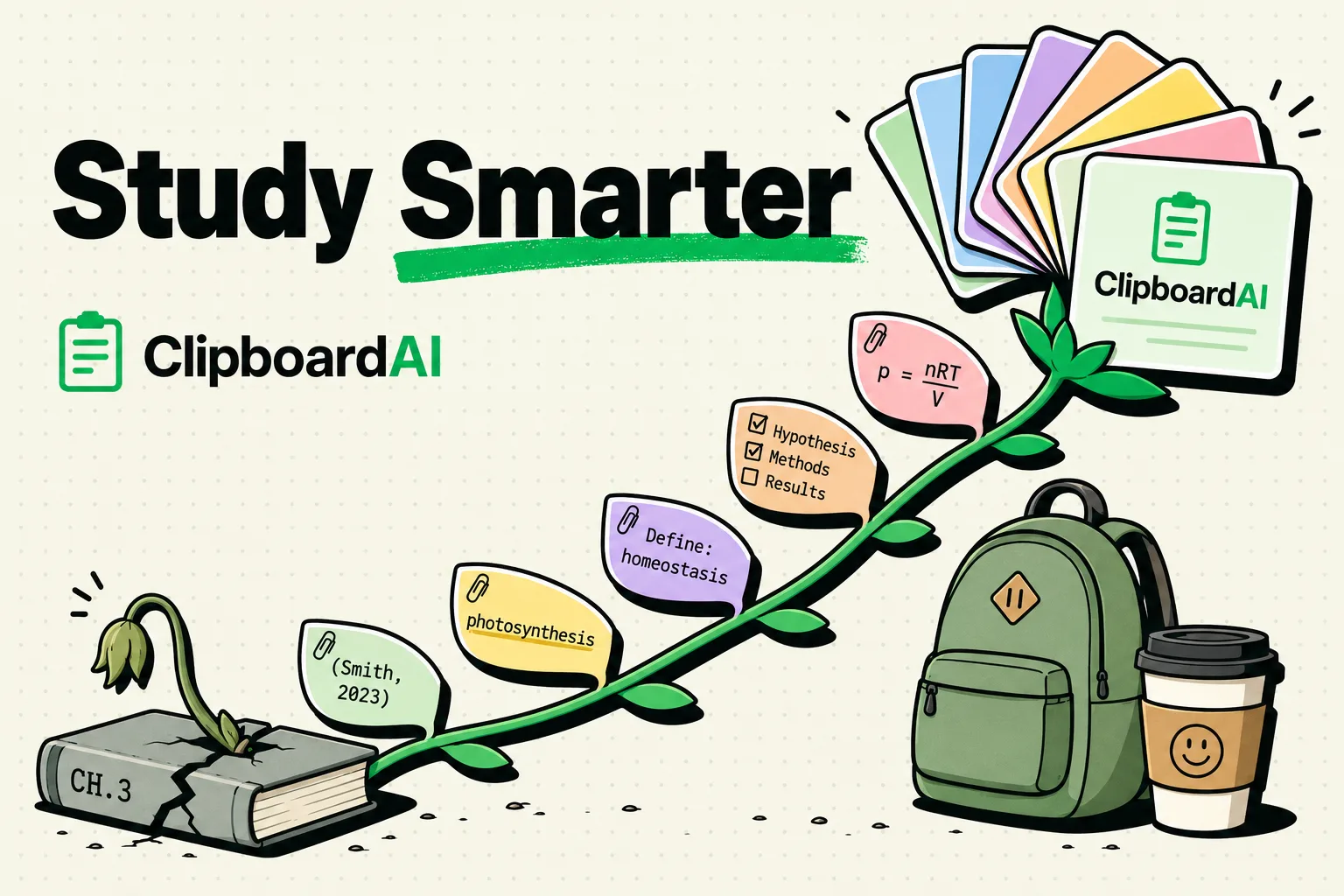
Students can streamline their research and note-taking workflows by using a clipboard manager like ClipboardAI on their iPhones and iPads. Instead of copying and pasting one citation, link, or quote at a time and constantly switching between research databases, PDFs, and document processors, a clipboard manager keeps a running timeline of everything you copy. This enables you to gather all your research material in a single pass and paste it into your study guides or essay drafts at once.
The App-Switching Loop of Academic Research
Students face a relentless volume of copy-paste actions. When writing a research paper or preparing a study guide, you are constantly extracting information from multiple sources:
- Direct quotes from digital textbooks and academic journals
- Citation details (author names, publish dates, journal titles)
- Web links for source material reference
- Formulas, diagrams, and definitions for quick study cards
Without a clipboard manager, the standard device behavior limits you to one active slot. If you copy a quote from a research paper, you must immediately open your document editor to paste it. If you copy the source URL first, your quote is lost. This constant back-and-forth between Safari, your PDF reader, and Google Docs is a major time-drain that disrupts your cognitive flow and leads to fragmented study sessions.
3 Student Workflows Built for Clipboard History
By installing a clipboard manager that saves your copy timeline, you can split your study sessions into distinct, highly focused phases:
1. The Research-First Method
Instead of researching and writing at the same time, separate the tasks. Open your reference database (such as JSTOR, Google Scholar, or your university library portal) and focus purely on reading. When you find a relevant quote, statistic, or citation, copy it. Keep reading and copy the next one.
ClipboardAI saves every selection in the background. When you open your essay outline later, your clipboard history will serve as a curated, chronological outline of all the quotes and data points you gathered, ready to be dropped directly into your text.
2. Streamlining Bibliography Construction
Building a reference page or works cited sheet usually requires copying publisher details, author lists, and book titles individually. With ClipboardAI, copy all the citation components from the source page. Then, switch to your bibliography document and paste them in order.
You can also use custom pinned structures for different style guides (like APA or MLA) so you never have to double-check whether the date goes in parentheses or after the publisher.
3. Rapid Study Card Generation
Creating digital study cards in apps like Anki or Quizlet usually involves copying term-and-definition pairs one by one. By preserving your copy history, you can read through your textbook, copy ten terms and their definitions in sequence, and then paste them into your flashcard software in a single block, cutting your preparation time in half.
Value Artifact: Student Research & Citation Template Kit
Use these pinned templates in your ClipboardAI keyboard extension to quickly structure your study notes and compile works cited pages on your mobile device:
1. Citation Formatting Blueprints
-- APA 7th Edition Guide --
Author, A. A. (Year of Publication). Title of work: Capital letter also for subtitle. Publisher. DOI or URL
-- MLA 9th Edition Guide --
Author's Last name, First name. "Title of Source." Title of Container, Other contributors, Version, Number, Publisher, Publication Date, Location.2. Academic Note-Taking & Reference Log Matrix
| Study Resource Type | Custom Pinned Template | Best Used For |
|---|---|---|
| Reading Notes | "Source: [Title] ([Author])\nPage: [Page Num]\nKey Quote: \"[Paste Quote]\"\nMy Analysis: [Insert thoughts here]\nKey Terms: [Terms]" | Creating structured notes from research papers for later reference. |
| Study Guide Card | "Concept/Term: [Term]\nCategory/Subject: [Subject]\nDefinition: [Definition]\nFormula/Example: [Example]\nRelated Concepts: [Concepts]" | Gathering key definitions directly from text materials to paste into Anki. |
| Lecture Heading | "Date: [Current Date] \| Subject: [Course] \| Professor: [Name]\nLecture Topic: [Topic]\nPrep Readings: [Readings]" | Creating a standardized, professional header for your class note files. |
| Group Project Tracker | "Task: [Task Name] \| Assigned To: [Name] \| Due Date: [Date] \| Status: [Not Started/In Progress/Done] \| Notes: [Notes]" | Tracking tasks and sharing updates quickly with group members. |
How Standard Keyboard Functions Compare to ClipboardAI
| Academic Task | Standard iOS Keyboard | ClipboardAI |
|---|---|---|
| Extracting Multiple Quotes | Must switch apps and paste after each copy | Copy all quotes continuously; paste later from history |
| Managing Citation Links | Overwrites on next copy; hard to track | Automatically logs and categorizes all copied URLs |
| Formatting Formulas | Must type special characters manually | Pin common symbols and formula frameworks for fast pasting |
| Research Search Queries | Must retype search strings in different databases | Search history logs past queries for reuse across portals |
| Cross-Device Reference | Universal Clipboard overwrites across iPad/Mac | Clipboard history synced across devices via secure iCloud |
Honest Caveats & Academic Limitations
To keep your research workflow accurate and prevent system problems, keep these guidelines in mind:
- Not a Citation Generator: ClipboardAI stores and organizes what you copy, but it is not a dedicated bibliographic system. It will not automatically fetch metadata or formats like Zotero or Mendeley do. Use it to collect raw research clippings, and use specialized bibliography tools for final manuscript formatting.
- Avoid Copying Credentials: Do not copy your university login passwords or portal authentication links to your clipboard history. Set ClipboardAI’s settings filters to ignore password fields, or clear your history at the end of each session to prevent security liabilities.
- Watch Text Length Limitations: Clipboard managers are optimized for snippets, definitions, and short paragraphs. Avoid copying entire chapters or multi-page documents to your clipboard, as this can clutter your history and slow down search performance.
Step-by-Step Study Setup Guide
- Install ClipboardAI: Download the application on your iPhone, iPad, or Mac.
- Add Custom Keyboard: On iOS, go to Settings > General > Keyboard > Keyboards > Add New Keyboard... and select ClipboardAI. Turn on Allow Full Access so you can paste saved snippets.
- Configure Your Clean Timer: In the ClipboardAI settings, set Auto-Delete Old Clips to 30 days (the shortest window available) so research logs stay long enough for a typical assignment cycle without piling up indefinitely.
- Create Subject Folders: Set up custom category tags in ClipboardAI, such as Biology Comp, History Citations, and Math Formulas.
- Start Your Research Run: Read your material, copy all required excerpts, and use your custom keyboard to paste them directly into your notes or flashcard generators.
Frequently Asked Questions
Can I copy math formulas and special characters?
Yes. ClipboardAI preserves all mathematical symbols, LaTeX strings, and Greek letters. You can pin common formulas (like the quadratic formula or statistical equations) to a folder and insert them into your homework documents with a tap.
How do I clear my study clipboard after finishing a paper?
Open the main ClipboardAI app, tap the menu in the top-right corner, and select "Clear All History." This completely purges your local timeline database, leaving your pinned folders untouched.
What should I do if my copied quotes are missing parts?
Make sure you are copying text within the character limit of your PDF reader or web browser. Some academic publishers restrict the amount of text you can copy at one time to prevent copyright violations.