
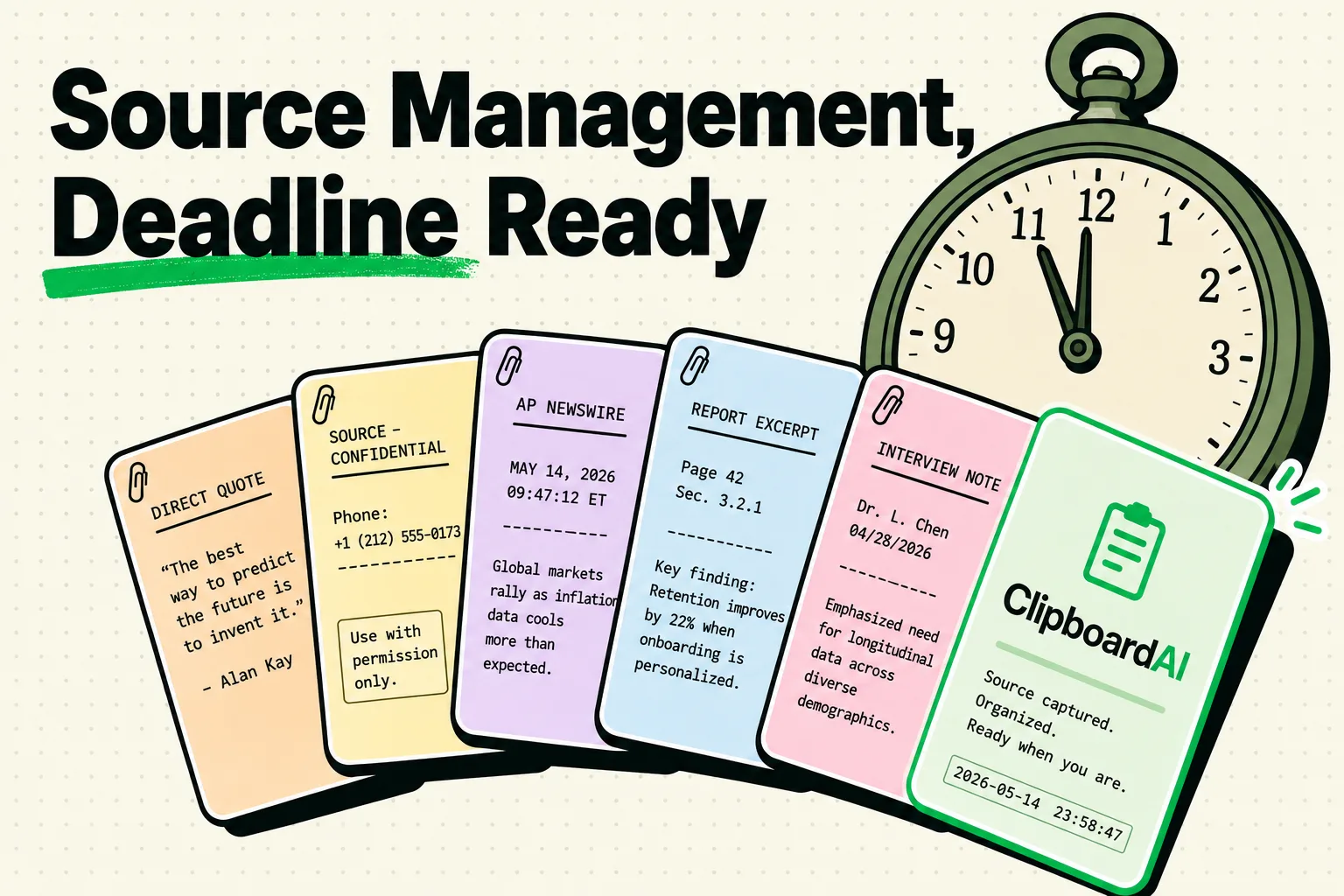
To meet tight newsroom deadlines, using a clipboard manager like ClipboardAI on your iPhone and Mac is the most reliable way to save source quotes, reference links, and interview notes. Since iOS natively limits your clipboard to one active item, a history buffer ensures you never overwrite a phone number or key statistics while cross-referencing documents, letting you compile stories faster without losing critical facts.
Here is a guide to managing sources securely and writing on deadline with an optimized clipboard workflow.
The Journalist's Deadline Dilemma
Newsrooms operate in a state of constant information overload. On a typical day, a reporter handles dozens of browser tabs containing public databases, court transcripts, press releases, and active message threads with sources.
When filing a story on a 60-minute deadline, the system clipboard becomes a major bottleneck. Under native operating system rules:
- You copy a quote from a Zoom interview transcript.
- You copy the spelling of the source's name to paste into the byline.
- The quote is now lost from your clipboard memory.
- If you forgot to paste the quote first, you must log back into the transcription app, find the timestamp, and re-copy it.
This process is slow, frustrating, and prone to copy-paste errors. When you are rushing to file a piece, manual retyping leads to spelling mistakes, incorrect dates, or transposed numbers. In journalism, a single incorrect digit in a budget statistic or a misspelled name in a legal case can trigger retraction demands, damage your credibility, and invite libel issues.
Required Value Artifact: The Reporter's Deadline Snippet Kit
Keep these essential templates pinned inside ClipboardAI for rapid access. They can be pasted into emails, chat rooms, or your text editor with one tap using the iOS keyboard extension.
1. Source Metadata & Verifiability Log
When you copy a quote, copy this metadata block immediately after and fill in the details. This creates a clear trail of evidence for editorial check-passes:
[Source Quote] - Attribution Name: [Full Name] - Title/Organization: [Affiliation] - Verification Status: [Verified / On-the-Record / Off-the-Record / Background] - Date & Time: [YYYY-MM-DD hh:mm] - Origin Link: [URL or Transcript File] - Contact Method: [Signal / Email / Phone]2. Standard Newsroom Correction Request
Use this template to send rapid correction requests to editors or syndicate desks without starting from scratch:
Editor,

A correction is needed for the story titled "[Article Title]" published on [Date].

- Location of error: [Paragraph number or quote segment]
- Current text: "[Incorrect text]"
- Correct text: "[Validated correction]"
- Source of verification: [Public database link / verified document URL]

Please confirm when the update is live and if a correction note has been appended.

Thank you,
[Your Name]
3. Source Interview Scheduling Script
When reaching out to multiple sources for commentary, keep this quick template pinned to send consistent, professional invitations:
Hi [Source Name],

I'm a reporter with [Publication] working on a story about [Topic/Angle].

I saw your recent work on [Specific Sub-topic] and would love to get your perspective. Do you have 10 minutes for a brief call today or tomorrow? I can do phone or Signal.

We are aiming to file by [Deadline Time/Day].

Best,
[Your Name]
Cell: [Phone Number]
Secure Signal: [Handle]
Security Audit: How Should Journalists Store Copied Data?
For journalists, source protection is a legal and ethical obligation. If you copy sensitive, off-the-record information, you must know where it is being saved. Use this decision matrix to select your clipboard configurations:
                  ARE THE COPIED DETAILS SENSITIVE?
                                │
               ┌────────────────┴────────────────┐
               ▼                                 ▼
             [YES]                             [NO]
               │                                 │
     Is the source at risk?             Standard research, UTMs,
      ┌────────┴────────┐                and public references.
      ▼                 ▼                        │
   [HIGH]            [MEDIUM]                    ▼
     │                  │                 Safe to use Cloud
  Use local-only     Toggle sync off,    Sync or universal
  clipboard; manually wipe clip history   history storage.
  clear RAM immediately.  after filing.
Here is how different clipboard management methods secure your reporting:
| Management Method | Data Location | Sync Protocols | Encryption Level | Best For |
|---|---|---|---|---|
| Native macOS/iOS RAM | System Memory | iCloud Handoff (Unencrypted between local links) | None (Local plaintext) | Passing temporary, non-sensitive URLs between phone and Mac. |
| Local-only SQLite App | Local Device | None (Network blocked) | Device-level sandboxed | Sensitive investigative notes, whistleblower contacts. |
| ClipboardAI (Configured) | On-Device SQLite DB | Optional iCloud sync through your own iCloud (encrypted at rest/in transit by Apple, never a ClipboardAI server) | On-device by default; optional iCloud sync protected by Apple | Daily reporting, quote harvesting, and rapid news writing. |
Advanced Clipboard Tips for Newsrooms
By designing your clipboard workspace around these strategies, you can shave minutes off your filing times:
1. The Multi-Quote Harvest (Sequential Clipboard)
When parsing a 50-page court filing or a city council transcript, do not write your story paragraph-by-paragraph.
- Open the PDF report.
- Copy every relevant data point, quote, and date in succession.
- ClipboardAI compiles them in your history stream.
- Open your writing app and draft your story using your historical clipboard queue as your outline reference.
2. Custom Exclusions for Encryption Apps (Mac Only)
If you communicate with confidential sources via Signal, WhatsApp, or ProtonMail on your Mac, you do not want their messages logged in your clipboard history database.
- Navigate to
ClipboardAI > Settings > Excluded Appson Mac. - Add
Signal,ProtonMail, and your password manager to the custom ignore list. - This ensures that any text copied from these secure environments while they're frontmost is bypassed by the clipboard logger entirely. This exclusion capability exists on Mac only - there is no equivalent setting on iPhone or iPad, so on mobile you should manually delete sensitive clips from your history after use.
3. AP Style Cheat Sheet Pins
If you frequently struggle to remember AP style rules (such as numerical conventions, capitalization of official titles, or date abbreviations), pin them in your manager. Create a folder named Style Guide and pin the top 10 rules you search for most.
Honest Caveats: Limits of System RAM
We want to highlight the hardware and operating system constraints you will encounter:
- The Local-Only Rule: Since ClipboardAI values user privacy, if you disable cloud sync, your clipboard history will not share database tables between your Mac and iPhone. If you copy on your phone, you must use Handoff to paste to your computer, which is subject to iOS system memory constraints.
- Plaintext RAM Vulnerability: If you copy an off-the-record name manually, it sits in your system pasteboard in plaintext. If you open a standard browser or social media app immediately after, that active app can scan your pasteboard. Get into the habit of copying a blank space or a generic word to wipe your RAM after copying sensitive details.
- Clipboard Buffer Limits: A clipboard history logger is designed for text, XML, and small screenshots. Copied audio snippets, large video clips, or raw database file systems should not be loaded into your clipboard history, as they can cause memory leaks.
Setting Up Your Newsroom Workspace
Implement this setup to keep your workspace structured and secure:
- Install ClipboardAI on your computer and mobile phone.
- Revoke Network Permissions for Keyboards (Optional): If you are working on a high-risk national security beat, run the ClipboardAI mobile app completely offline without enabling cloud sync.
- Configure Settings (Mac): Go to
Settings > Excluded Appson Mac and add your password manager so its copies are never logged. This setting is available on Mac only, not iPhone or iPad. - Create Workspace Folders: Build folders labeled
Active Story Quotes,Style Cheats, andContacts.