
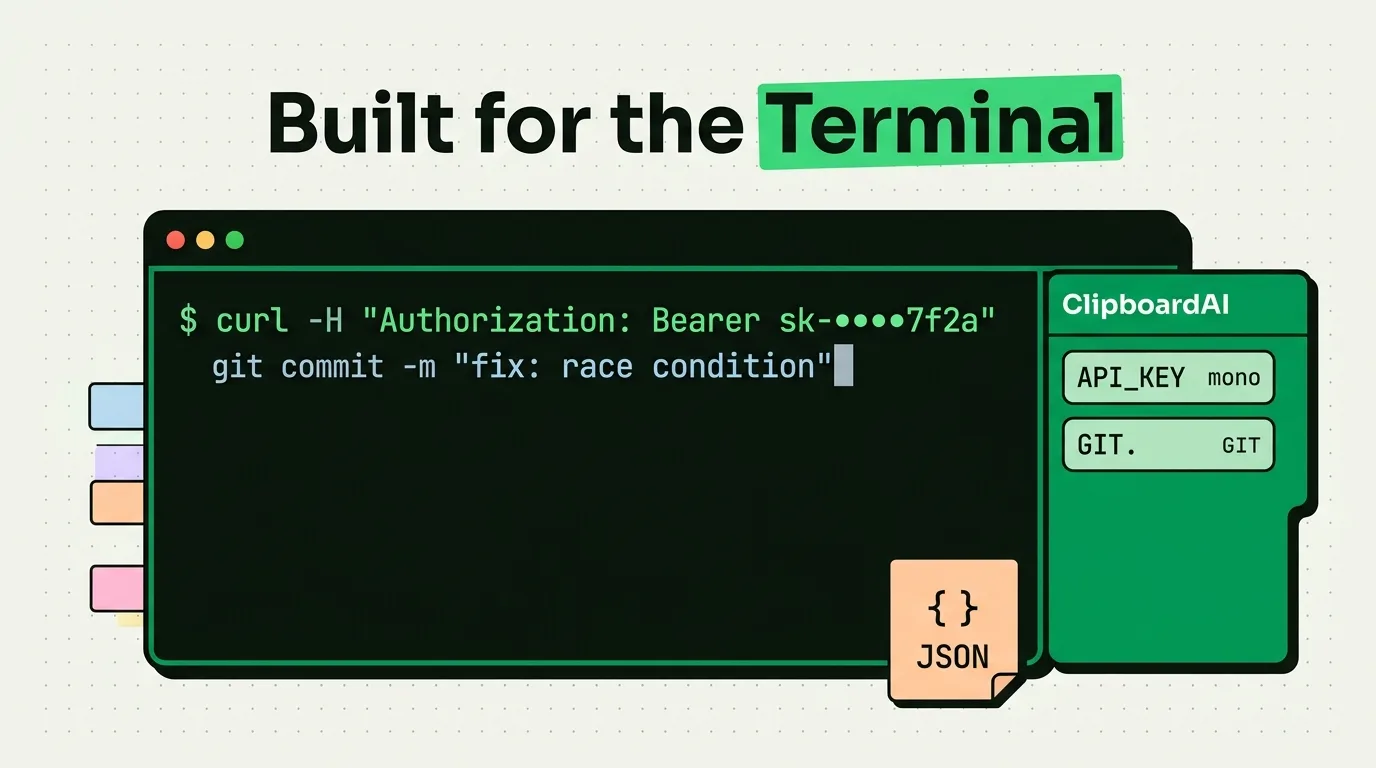
Every developer has a personal collection of text that gets typed from scratch too often: stack traces searched on Stack Overflow, API keys looked up from a vault, error messages copy-pasted into GPT for debugging, boilerplate snippets that differ just enough between projects to resist automation but are identical enough to hurt when re-typed. A clipboard manager does not replace your IDE snippets or dotfiles - it fills the gap between your editor and the rest of your workflow.
Where the Real Developer Time Loss Happens
IDE snippet managers handle in-editor expansion. Shell aliases handle CLI boilerplate. But neither covers the cross-app friction:
- You find a Stack Overflow answer and copy a snippet. Before pasting, you open Slack to answer a colleague's question. The snippet is gone.
- You copy a Docker container ID from terminal to include in a bug report. You copy the error message to add to the same report. The container ID is gone.
- You copy an API endpoint URL from Postman. You switch to your notes app. You switch to your editor. By the time you need to paste, you have copied three other things.
ClipboardAI eliminates these losses by maintaining a searchable history of every item you copy, retrievable in any app.
The Developer's ClipboardAI Setup
Pinned Snippet Categories
Category: Boilerplate
## Git Commit Convention
feat: [short description]
fix: [short description]
docs: [short description]
refactor: [short description]
test: [short description]
chore: [short description]

## Pull Request Description Template
## What Changed
[Brief description of the change]

## Why This Change
[Context or motivation]

## How to Test
1. [Step 1]
2. [Step 2]
Expected result: [what should happen]

## Related Issues
Closes #[issue number]

## PR Checklist
- [ ] Tests added/updated
- [ ] Documentation updated
- [ ] No breaking changes (or changelog updated)
Category: API Reference
## Common HTTP Status Codes (Quick Reference)
200 OK - success
201 Created - resource created
204 No Content - success, no body returned
400 Bad Request - client error in request
401 Unauthorized - auth required
403 Forbidden - authenticated but not authorized
404 Not Found - resource does not exist
409 Conflict - state conflict (e.g., duplicate entry)
422 Unprocessable Entity - validation error
429 Too Many Requests - rate limited
500 Internal Server Error - server-side failure
503 Service Unavailable - server temporarily down
Category: Regex Patterns (Paste-Ready)
Email: ^[a-zA-Z0-9._%+-]+@[a-zA-Z0-9.-]+\.[a-zA-Z]{2,}$
US Phone: ^\+?1?\s*\(?\d{3}\)?[\s.-]?\d{3}[\s.-]?\d{4}$
UUID: ^[0-9a-f]{8}-[0-9a-f]{4}-[0-9a-f]{4}-[0-9a-f]{4}-[0-9a-f]{12}$
ISO Date: ^\d{4}-(0[1-9]|1[0-2])-(0[1-9]|[12]\d|3[01])$
URL: ^https?:\/\/[^\s/$.?#].[^\s]*$
IPv4: ^((25[0-5]|(2[0-4]|1\d|[1-9]|)\d)\.?\b){4}$
Credit Card (basic): ^\d{4}[\s-]?\d{4}[\s-]?\d{4}[\s-]?\d{4}$
Debug Session Workflow
When debugging, the copy-search-paste loop is where most time is lost. Here is the optimized flow:
- Copy the error message, stack trace, and relevant variables in sequence
- Open your search tool (browser, ChatGPT, internal wiki) - your copies are all in history
- Paste error message into the search. Get result. Copy the relevant fix.
- Switch to your editor. Open ClipboardAI history. Your error context AND the fix are both there.
- Paste the fix, verify, and move on.
The efficiency gain is eliminating the "wait, what was that error message again?" trips back to the terminal.
The Container and Process ID Problem
Long-lived debug sessions involve container IDs, process IDs, port numbers, and session tokens that change every time you restart. Without a clipboard manager, you re-copy these each time you need to reference them in a command or log search.
With ClipboardAI, copy the container ID once at session start. It is in your history for the full session. Need to reference it in five different commands? Retrieve from history each time.
# Copy this at session start:
CONTAINER=$(docker ps -q --filter name=myapp)

# Then retrieve from clipboard when needed in any subsequent command:
docker exec -it [paste from clipboard history] /bin/bash
docker logs [paste from clipboard history] --tail=100
Environment Variables and Configuration (Handle Carefully)
Never pin real API keys, secret tokens, or database passwords in a clipboard manager. Use your secrets manager (1Password, Vault, AWS Secrets Manager) for these and exclude it from clipboard history.
What is appropriate to pin:
- Non-secret environment variable names and placeholders:
API_BASE_URL=,NODE_ENV=development,PORT=3000 - Database connection string formats:
postgresql://[user]:[password]@[host]:[port]/[dbname](with actual credentials omitted) - Mock/test data strings that are not real credentials
Exclusion setup: ClipboardAI → Settings → Privacy → Excluded Apps → add your secrets manager, .env file viewer, and any terminal profile where you regularly handle credentials.
Cross-Platform Sync for Remote/Distributed Dev Teams
If you work across a MacBook and an iPad, or across a home and office machine, ClipboardAI's iCloud sync means the snippet library you maintain on your Mac is available on all your devices. A regex pattern you pinned on Mac is in the ClipboardAI keyboard on your iPhone when you need to reference it while reviewing a mobile bug.
This is not a security risk when configured correctly (no real credentials, excluded apps set up). It is the same trust model as syncing your Xcode bookmarks or your shell history via a dotfiles repo.