
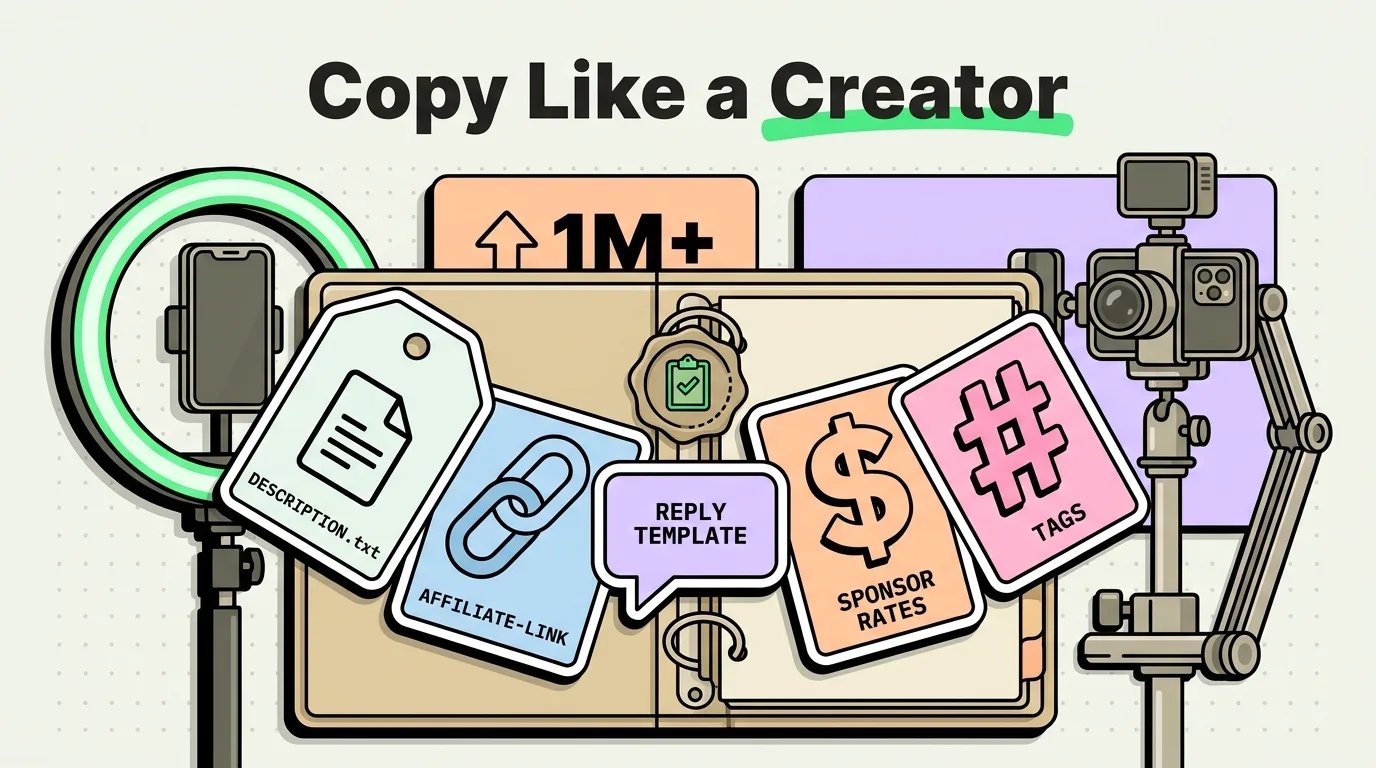
Content creators - YouTubers, podcasters, newsletter writers, TikTokers, Instagram editors - all share one workflow bottleneck that nobody talks about: the gap between researching and creating. You read a stat, copy a quote, find an image credit, note a timestamp - and by the time you open your script doc or video editor, half of it is already overwritten.
A clipboard manager is the bridge across that gap. Here is how to actually use it for a content production workflow, not a generic "productivity" one.
The Content Creator's Clipboard Problem
Your production workflow touches more apps than almost any other profession: Safari for research, YouTube Studio for video management, Canva or Photoshop for thumbnails, Final Cut or CapCut for editing, Notion or Google Docs for scripts, Twitter/Instagram/TikTok for posting, Later or Buffer for scheduling.
In a typical production day, you switch between these apps hundreds of times. Every switch risks overwriting your current clipboard. And unlike a developer or writer, you are often copying mixed content types in rapid sequence: a video title idea, then a sponsor's web URL, then a thumbnail color hex code, then a competitor's video timestamp you want to reference.
The stock clipboard keeps exactly one of these. ClipboardAI keeps all of them.
The Content Production Snippet Library
These are the pinned snippets that save the most time in a real content creator workflow:
Video/Post Description Templates
## YouTube Description Template
[Video Title] - [One-sentence hook about why this matters]

🔗 Links mentioned:
- [Resource 1]: [URL]
- [Resource 2]: [URL]

📌 Timestamps:
00:00 - Intro
[Add as you edit]

🛠️ My gear: [affiliate link]
📧 Business inquiries: [email]

#[tag1] #[tag2] #[tag3]
## Instagram Caption Template
[Hook - first line must stop the scroll]
[2-3 sentences of context or value]
[CTA: save this, share with someone who needs it, comment your take]
[5-10 hashtags in first comment or below]SEO/Research Templates
## Keyword Research Note
Primary keyword: [keyword]
Monthly search volume: [number]
Ranking difficulty: [score]
Top 3 competitor videos:
1. [URL] - [views]
2. [URL] - [views]
3. [URL] - [views]
Content angle: [what makes mine different]
Standard Links (Always Available)
Linktree/link-in-bio: [URL]
Sponsorship media kit: [URL or "on request"]
Business email: [email]
YouTube channel: [URL]
Press/collab contact: [contact info]
The Research → Script Workflow
The biggest time waster in content production is bouncing back to research tabs while writing a script. Here is how to eliminate it:
Phase 1: Research (do not open your script doc yet) As you research, copy every useful quote, stat, URL, and idea in sequence. Do not paste anything. ClipboardAI logs each item automatically. Go deep into your research without worrying about losing anything.
Phase 2: Script writing Open your script document. Open ClipboardAI keyboard or app sidebar. Everything you copied is there, searchable, retrievable by tapping. Paste quotes exactly as they appeared in the source. No paraphrasing because you forgot the exact wording. No switching back to a browser tab to re-find the stat.
Time saved per video: 20-40 minutes for a typical 10-minute YouTube video with 5-10 sourced claims.
Thumbnail Production Clipboard Tricks
For thumbnail design (in Canva, Figma, or Photoshop):
- Copy your brand HEX codes once per session and pin them - no more hunting through your style guide
- Copy your font names (e.g., "Montserrat Black," "Impact Condensed") so you can paste them into font search fields
- Copy the exact thumbnail dimensions for each platform:
YouTube thumbnail: 1280 × 720px (16:9, max 2MB)
Instagram feed: 1080 × 1080px (1:1) or 1080 × 1350px (4:5)
TikTok cover: 1080 × 1920px (9:16)
Pinterest pin: 1000 × 1500px (2:3)
Twitter/X card: 1200 × 675px (16:9)
Sponsor Workflow
When you have a sponsorship, you typically need to: use their exact approved talking points, include their exact discount code, use their approved link, and match their approved CTA language. All of this changes every campaign.
Pin sponsor-specific content in a dedicated "Active Sponsorships" category in ClipboardAI. Update it when campaigns change. During filming or writing, pull the exact language without any memorization or tab-switching.
## [Sponsor Name] Campaign - [Month Year]
Discount code: [CODE] (case-sensitive)
Landing URL: [URL]
Approved CTA: "[Exact approved language]"
Deal terms to mention: [details]
Campaign end date: [date]
Privacy Note for Content Creators
If you manage multiple brand accounts or have brand deal contracts with NDA provisions, keep those documents in encrypted cloud storage - not your general clipboard history. Clipboard history is designed for operational text snippets, not contract terms or confidential creative briefs.
If you accidentally copy sensitive content (a sponsor's unreleased product name, a contract clause), delete it from ClipboardAI history immediately: long-press the item → Delete.