
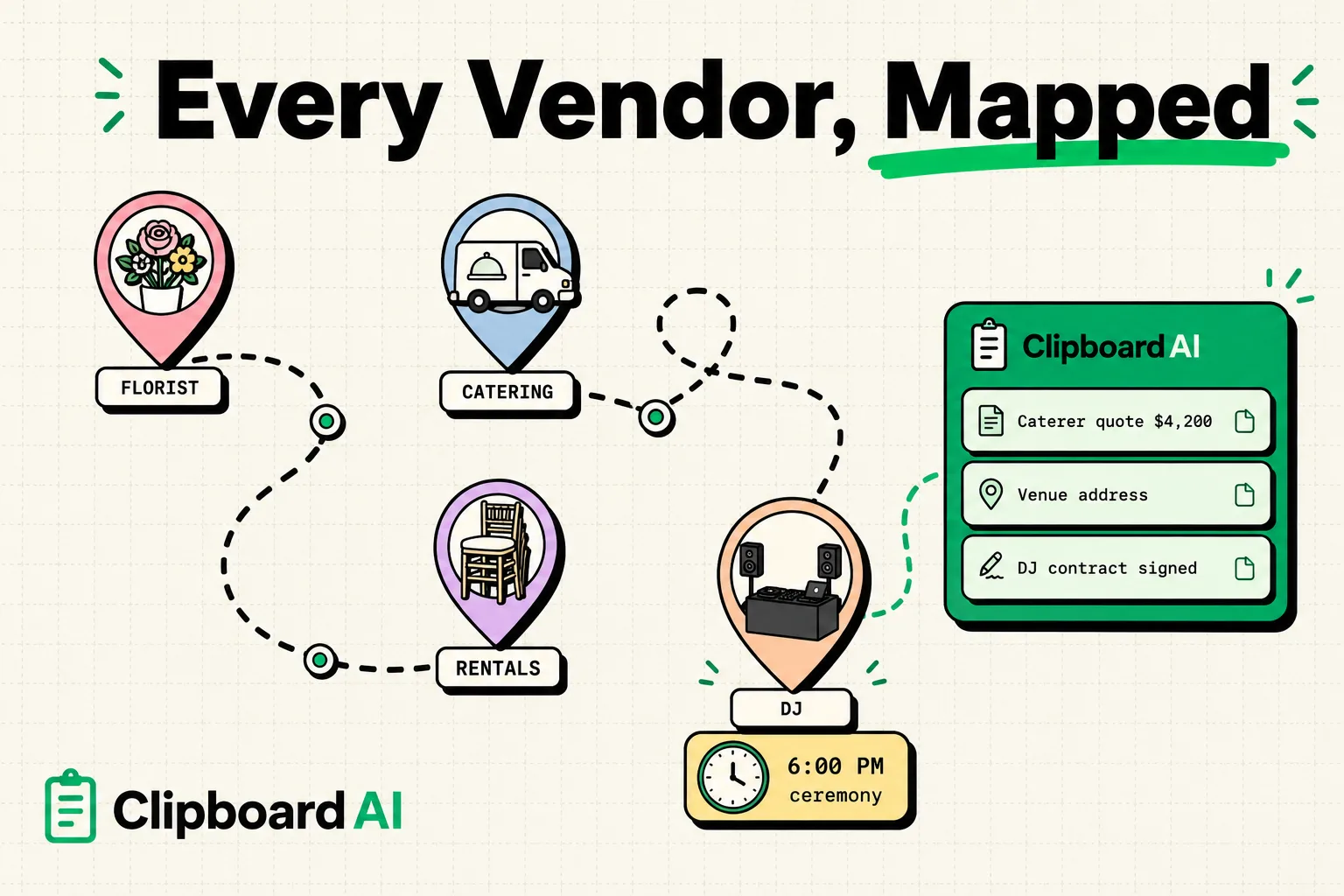
For event planners, utilizing a clipboard manager on your iPhone or iPad is the most efficient way to capture, organize, and paste vendor quotes, caterer addresses, contract details, and schedule changes. Because iOS limits the default clipboard to a single copied item, using a clipboard utility like ClipboardAI prevents you from losing contact numbers and run-of-show coordinates when toggling between email, sheets, and messaging apps, saving valuable time during busy execution days.
Here is a blueprint to optimize your event production workflow, keep vendor communications aligned, and manage event logistics on the go.
The Chaos of On-Site Event Production
Coordination is the hardest part of event planning. On any given wedding day or corporate summit, you are the central communication hub. You are answering texts from the florist, checking emails from the venue coordinator, referencing budget cells in Google Sheets, and messaging your assistant on Slack.
Consider a common workflow challenge on event day:
- The caterer texts you to confirm the loading dock access code.
- You open your email app, search for the venue contract, and find the access code:
Dock-Gate-49B. You copy it. - Before you can paste it to the caterer, the client calls to ask for the DJ's phone number.
- You look up the DJ's contact card, copy the number, and text it to the client.
- The dock access code is now gone from your clipboard. You have to navigate back to your email, re-search the venue contract, and copy it a second time.
When you are on your feet managing setup, every extra tap is a distraction from the physical logistics in front of you. A clipboard manager acts as your digital assistant, silently recording every detail you copy so it is ready when you need it.
Required Value Artifact: The Event Planner's Timeline Snippet Pack
Keep these templates pinned in your clipboard manager to quickly dispatch updates to vendors, clients, and setup staff from your mobile keyboard.
1. Vendor Arrival & Setup Confirmation
Send this confirmation text block to vendors 48 hours before setup:
Hi [Vendor Contact], this is [Your Name] with [Company Name]. Confirmed setup details for [Event Name] on [Date]:
- Venue Address: [Venue Address]
- Loading Zone: [Loading Dock Details]
- Your Setup Window: [Start Time] - [End Time]
- On-Site Contact: [Phone Number]
Please reply to confirm receipt. Thanks!
2. Schedule Shift Alert
When live agendas change during an event, notify your production team instantly:
⚠️ TIMELINE UPDATE - [Event Name]
We are running [Number] minutes behind schedule. Revised sequence:
- [Activity 1]: [New Start Time]
- [Activity 2]: [New Start Time]
- [Activity 3]: [New Start Time]
Please adjust your cues accordingly.
3. Venue Checklist Coordinates
For quick reference when checking off loading specs:
Venue: [Venue Name]
WiFi Network: [SSID] / Password: [Password]
Event Coordinator: [Coordinator Name] ([Phone Number])
AV Tech Lead: [Tech Name] ([Phone Number])
Emergency Contact: [Contact Name] ([Phone Number])
Productivity Toolkit Comparison for Event Production
Planners manage a broad stack of systems. Here is how clipboard managers support your existing software:
| Event Software Category | Primary Tool | Copy-Paste Bottleneck | Clipboard Manager Remedy |
|---|---|---|---|
| Project Management | Asana, Monday.com | Difficult to copy multi-line checklists on mobile. | Save entire checklists and paste them item-by-item using clipboard history. |
| Messaging | WhatsApp, Slack | Text threads push vendor contact cards out of view. | Pin vendor contact numbers, contract sheets, and gate codes for instant access. |
| Spreadsheets | Google Sheets, Excel | Selecting small cells on a phone often leads to copy errors. | Copy multiple data points sequentially on a laptop and access them on your phone. |
Running a Flawless Production Day
A clipboard manager is particularly valuable during the three critical phases of an event:
1. Pre-Event Vendor Outreach
In the weeks leading up to a large event, you send hundreds of check-in emails. Keep your standard contracts, tax document requests, and venue rules pinned in your clipboard manager. Rather than opening old drafts to copy-paste the text, use your mobile keyboard to insert the templates in seconds, changing only the vendor's name.
2. On-Site Setup and Load-In
During load-in, you are constantly moving around the venue. When a vendor asks where to set up or how to access the guest Wi-Fi, you don't have to look up the info sheet. Open your clipboard keyboard overlay, search "Wi-Fi" or "florist," and paste the exact instructions straight into a text message.
3. Post-Event Wrap-up and Invoicing
Once the event is over, you need to collect invoices and coordinate contractor payouts. Copy all incoming vendor invoice numbers, billing addresses, and payment amounts. Open your accounting software and paste the data directly from your clipboard log, reducing transcription errors.
Honest Caveats: Operating System & Application Limitations
Every mobile utility operates within Apple's system parameters. Planners should note these limitations:
- No Background Clipboard Listening: iOS sandboxing does not allow apps to run silently in the background and record your copies. If you copy vendor coordinates in Safari, you must open the ClipboardAI app or launch the custom keyboard to write that data to your local database.
- Universal Clipboard Speed Constraints: Apple's Universal Clipboard lets you copy text on a Mac and paste it on an iPhone. However, this depends on stable Wi-Fi and Bluetooth connections. On site at a convention center with poor cellular reception, this sync can take up to 5 seconds. We recommend storing critical event timelines locally on your mobile device.
- Sensitive File Handling: Avoid copying sensitive credential sheets or client credit card authorization forms. If you do, swipe left on the card within your clipboard history to delete them immediately from your device's memory.
Configuring Your Clipboard for Live Production
Set up your system before your next event to ensure smooth logistics:
- Download ClipboardAI on your Mac and iPhone.
- Exclusion Setup: In your app settings, add password managers, banking apps, and secure portals to the ignore list to prevent them from logging sensitive client profiles.
- Pin Your Timelines: Create a clipboard category folder named
Active Event Infoand pin the run-of-show timeline, client contact info, and venue dock instructions. - Learn the iOS Shortcut: Swipe the Globe key on your keyboard to access your history instantly while messaging vendors on site.