
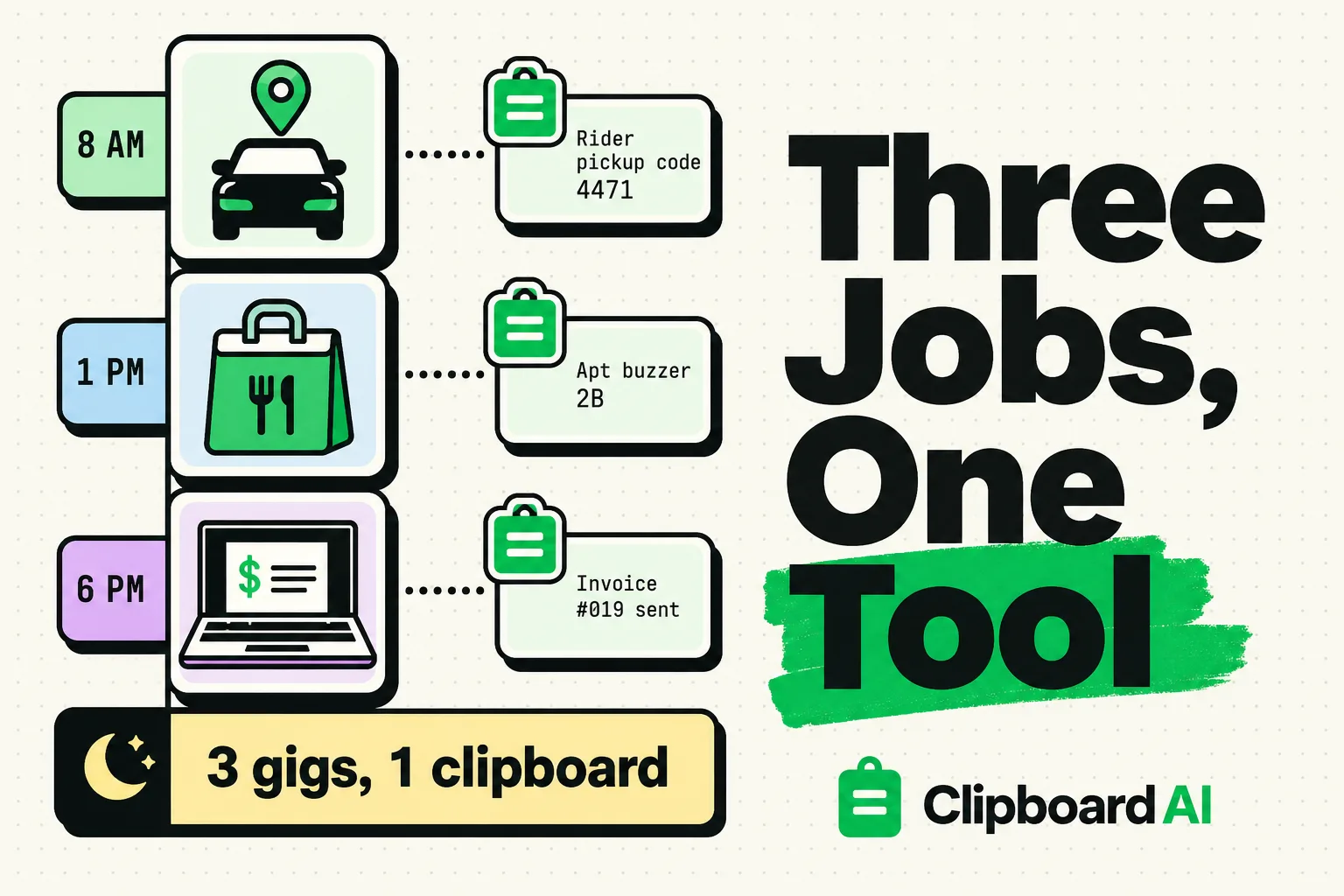
To optimize your gig work or side hustle, using a dedicated clipboard manager on your iPhone or iPad is the fastest way to copy, save, and paste client addresses, delivery drop-off instructions, promo codes, and canned support messages without losing them. Since native phone operating systems only hold one copied item at a time, a clipboard utility like ClipboardAI keeps all your frequently used snippets accessible, saving hours of app-switching every week.
Here is how you can set up a professional clipboard system to keep your deliveries on time and your client communication seamless.
The App-Switching Penalty in the Gig Economy
If you run deliveries for DoorDash, Instacart, or Uber Eats, or manage gigs on Fiverr, Upwork, and TaskRabbit, you are running a business from your phone. You have to coordinate client names, gate codes, specialized drop-off preferences, mileage logs, and platform support chats.
Consider a standard delivery workflow without a clipboard manager:
- You accept an order and copy the drop-off gate code from your driver app notes.
- You open Apple Maps or Google Maps to paste the address.
- You copy a text template to send to the customer: "Hi! I've picked up your order and I'm on my way."
- Your gate code copy is now gone. If you arrive and the customer isn't responding, you must exit your navigation, go back to the driver portal, find the order history, and re-copy that gate code.
This constant back-and-forth movement wastes seconds on every job. When you're trying to hit peak pay incentives or stack multiple orders across different apps, those lost seconds add up to fewer deliveries per hour. By utilizing a clipboard history log, you keep all this text data active and ready.
Required Value Artifact: The Gig Worker's Text Toolkit
Save these templates directly into your clipboard manager. Use your custom keyboard extension to paste them into delivery chat boxes, customer emails, or service orders in one tap.
1. Delivery Update Snippets
Keep these messages pinned so you don't have to type them out while parked at a red light:
// 1. Order Picked Up
Hi [Name], this is [Your Name] from [Platform]. I've picked up your order and I'm heading your way now! Estimated arrival is [Time].
// 2. Delayed at Restaurant
Hi [Name], they're still wrapping up your order at the counter here. I'll head out the moment it's ready and keep you updated!// 3. Drop-off Confirmation (No-Contact)
Hi [Name], I've placed your order at the door as requested. Have a great day!2. Client Booking Templates (Taskers & Handymen)
For freelance work on TaskRabbit, Thumbtack, or Fiverr, keep your quote structures ready:
// 1. Initial Quote Acknowledgment
Hi [Client Name], thanks for reaching out! I'm available to help with [Job Type] on [Date] at [Time]. My rate for this project is $[Rate]/hr, with a [Number]-hour minimum. Let me know if that schedule works for you!
// 2. Post-Job Review Request
Thanks for the business today, [Client Name]! If you're happy with how the [Job Type] turned out, I'd really appreciate a quick review on my profile when you have a moment. It helps other clients find my services. Thanks!Clipboard Workflow Comparison for Gig Apps
Here is how different clipboard management methods compare when running a multi-app side hustle:
| Clipboard Method | Multi-App Speed | Storage Capacity | Security & Isolation | Best Use Case |
|---|---|---|---|---|
| Native iOS Clipboard | Slow (Only holds one item at a time) | 1 item | High (Clears automatically in RAM) | Basic, single-app tasks only |
| Gboard Keyboard Clipboard | Moderate (Requires switching keyboards) | Up to 1 hour or manually pinned items | Medium (Google cloud sync options) | Fast pasting of pinned responses |
| ClipboardAI | Fast (Custom categories, on-screen keyboard overlay) | Unlimited local history | High (Encrypted local database, ignore lists) | Stacking orders, managing delivery addresses, running complex side businesses |
Streamlining Your Daily Shift
By utilizing a clipboard manager, we can refine the three core phases of a gig shift:
1. Stacking Orders (Multi-Apping)
If you run DoorDash and Uber Eats simultaneously to maximize earnings, speed is crucial.
- Copy the pickup location and order name from App A.
- Copy the pickup location and order name from App B.
- Pull up your clipboard manager to verify which pickup is closer, then paste the correct addresses directly into your navigation queue.
- You do not have to open and close each gig app repeatedly to verify your itinerary.
2. Safeguarding Gate Codes and Instructions
Customers frequently write long, complicated navigation steps in their delivery notes (e.g., "Take a left after the second leasing office, enter code #4920, and go to building 14 apartment 3").
- Copy the entire instruction set before you leave the store.
- It remains stored in your clipboard history.
- Even if the delivery app glitches or reloads mid-route (a common issue for gig drivers), you have the navigation guide saved.
3. Tracking Your Business Expenses
To track your miles and write off your business expenses, you must document your trips.
- Copy your starting mileage or location address at the beginning of your shift.
- Copy the odometer reading at the end.
- Open your mileage spreadsheet or accounting app once you get home and paste the log entries straight from your clipboard history.
Honest Caveats: Operating System & Application Limitations
No app can bypass Apple's security parameters, and gig workers should understand these limitations:
- iOS Clipboard Sandboxing: Apple does not allow third-party apps to read your clipboard in the background. If you copy a delivery address in Safari or your gig app, you must tap the ClipboardAI custom keyboard or open the app to save it to your historical list.
- Sensitive Data Exposure: Gig platforms occasionally require you to copy temporary verification codes, support passwords, or customer phone numbers. Make sure to set up ignore rules in your clipboard manager to exclude password containers and sensitive financial apps from being indexed.
- Bluetooth/Universal Clipboard Lag: If you copy a client contract on your laptop and try to paste it to your phone using Apple's Universal Clipboard, it can lag on cellular networks. When working in the field, keep your workflows local to your iPhone.
Setting Up Your Driver Clipboard Workflow
Spend five minutes configuring your phone to save time on your next shift:
- Download ClipboardAI on your iOS device.
- Enable the Keyboard Extension: Go to
Settings > General > Keyboard > Keyboards > Add New Keyboardand select ClipboardAI. Turn on "Allow Full Access" to let the keyboard insert your pinned templates. - Build Pinned Folders: Label them
Short Cuts,Delivery Messages, andExpense Logs. - Practice Clean Up: At the end of every week, clear out your temporary delivery addresses to keep your history clean.