
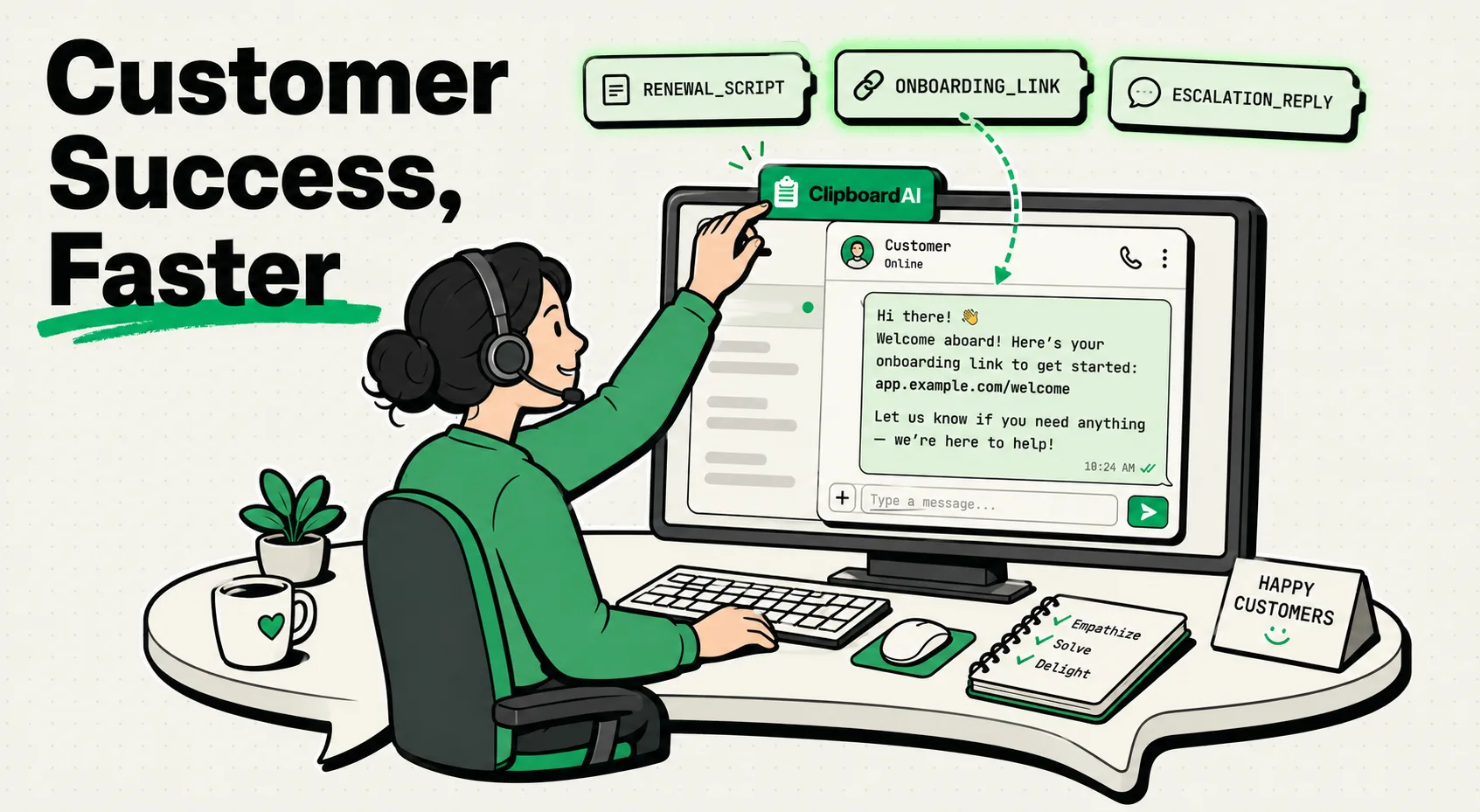
To accelerate ticket resolution and scale client onboarding, Customer Success Managers (CSMs) use clipboard managers like ClipboardAI on iPhone and Mac to store response scripts, product guides, and troubleshooting steps. Natively, iOS limits the system clipboard to a single copied item, forcing CSMs to constantly toggle between notes apps and customer chat windows; a dedicated clipboard history manager eliminates this bottleneck, helping teams resolve customer issues faster.
Here is a guide to building a responsive, mistake-free customer communication workflow on your devices.
The Response Speed Trap in Customer Success
In modern Customer Success (CS) and support environments, speed and accuracy are the primary metrics of success. Whether you are managing Enterprise accounts, resolving customer support tickets, or leading live onboarding workshops, clients expect rapid, precise answers to their questions.
Without a clipboard history utility, the day-to-day work of a CSM is slow:
- A client asks for the link to your API documentation and the steps to reset their API token.
- You switch to your internal knowledge database, copy the API documentation URL:
https://docs.yoursite.com/api - You switch back to the customer chat (e.g., Intercom, Zendesk, or Slack) and paste the URL.
- You navigate back to your documentation to find the token reset script steps, highlighting and copying the text block.
- The API documentation URL is now erased from your clipboard RAM.
- If the customer asks for that link again in a follow-up message, you must repeat the entire search process.
This constant bouncing between your ticketing portal, product documentation, and word processors creates mental fatigue. Under pressure to keep resolution times low, manually retyping steps or copying links under time constraints often leads to broken URLs, typos, and confusing answers. These small mistakes erode customer trust and delay ticket resolution.
Required Value Artifact: The CSM Communication & Response Matrix
Keep these templates and reference sheets pinned inside ClipboardAI for instant access. You can paste them into your client chat systems or email clients with a single tap using the custom iOS keyboard.
1. New Client Onboarding Welcome Script
Keep this standardized introduction pinned. Customize the bracketed fields as you send welcome emails:
Hi [Client First Name],

Welcome to ClipboardAI! I'm thrilled to be your dedicated Customer Success Manager.

My goal is to help your team get fully onboarded and maximize your productivity. To help us get started, please complete these three steps:

1. Create your account team workspace: [Workspace Sign-Up Link]
2. Bookmark our quick-start guide: [Product Guide URL]
3. Schedule our 15-minute onboarding kickoff call here: [Calendly/Scheduling Link]

If you have any initial questions or run into technical blockers, just reply to this thread.

Best,
[Your Name]
Customer Success Manager | ClipboardAI
2. Engineering Escalation Report
When a customer reports a bug, use this structured block to copy the issue details and paste them into your team's tracking system (like Jira or linear):
⚠️ CUSTOMER BUG ESCALATION
- Customer Account: [Account/Company Name]
- Priority Level: [High / Medium / Low]
- Platform Affected: [iOS / macOS / Web / Windows]
- Bug Description: [Describe what is happening]
- User Steps to Reproduce:
  1. [Step 1]
  2. [Step 2]
- Support Ticket Reference: [Ticket Link]
3. Customer Troubleshooting Response Matrix
Create a quick troubleshooting folder in your clipboard history containing standard answers to common customer technical issues:
| Common Customer Issue | Immediate Root Cause | Troubleshooting Steps to Paste | Action Link to Share |
|---|---|---|---|
| Keyboard keyboard won't load | iOS keyboard dictionary glitch | 1. Go to Settings > General > Reset.<br>2. Tap Reset Keyboard Dictionary.<br>3. Restart device. | https://clipboardai.app/help/keyboard-reset |
| Sync is failing across devices | Volatile iCloud token mismatch | 1. Sign out of Apple ID.<br>2. Restart both devices.<br>3. Log back in and enable iCloud Handoff. | https://clipboardai.app/help/sync-issues |
| Pasting secure details logs in history | App not added to Excluded Apps list (Mac) | 1. Open App Settings > Excluded Apps (Mac only).<br>2. Add the password manager or CRM to the list.<br>3. Wipe secure clips manually. | https://clipboardai.app/help/privacy-settings |
Scaling Customer Support with Sequential Pasting
When responding to complex customer issues, you often need to paste multiple links and text blocks. ClipboardAI provides specific tools to accelerate these workflows:
1. Sequential Clipboard Execution
Instead of searching your knowledge base, copying a link, pasting it into Zendesk, going back to copy the next line, and pasting again:
- Open your internal documentation.
- Copy the greeting script, the documentation link, the escalation warning, and your scheduling link in succession.
- ClipboardAI logs all four items in your history queue.
- Open your customer ticket.
- Use the history list to paste the blocks in order, building your response in seconds without leaving the ticket editor tab.
2. Plain Text Conversion
Many internal customer manuals are heavily styled with HTML headers and custom colors. Copying text from these manuals and pasting them directly into customer email clients can result in weird background highlights or massive font styles.
- The ClipboardAI Solution: Use the Plain Text Paste feature to strip out all source styles, keeping your emails readable and consistently formatted.
Honest Caveats: Operating System & Application Limitations
No utility is without limits, and we want to document where clipboard managers encounter technical barriers:
- iOS Walled Garden Sandboxing: On iPhone and iPad, Apple’s sandbox prevents background apps from reading your system clipboard. If you copy a customer's email address in Safari on your iPhone, you must open the ClipboardAI keyboard extension or launch the app to pull that copy into your history database.
- Sensitive Client Information: Customer success teams frequently handle sensitive user data (like account numbers or login emails). On Mac, ClipboardAI automatically skips any app that stamps the nspasteboard.org privacy markers (like 1Password or KeePassXC) with zero setup, and you can also navigate to
ClipboardAI > Settings > Excluded Appson Mac to manually add your secure corporate CRM (e.g., Salesforce). This prevents private customer credentials from being saved in your clipboard history database while that app is frontmost. Note this exclusion feature exists only on Mac; there is no equivalent setting on iPhone or iPad. - iCloud Universal Sync Latency: Apple's Universal Clipboard allows you to copy text on your Mac and paste it on your iPhone. However, if your network connection is weak, you may experience a 3-5 second delay. For heavy client support workflows, we recommend working locally on your primary device.
Setting Up Your Customer Success Workspace
To build a responsive, organized client success setup, spend 10 minutes configuring your system:
- Install ClipboardAI on your computer and phone.
- Exclude Secure Applications (Mac): Navigate to
Settings > Excluded Appsand add your password manager and banking apps to the ignore list to ensure secure credentials are never recorded. This setting is available on Mac only. - Build Target Folders: Create custom folders named
Onboarding Scripts,Troubleshooting Guides, andEscalation Logs. - Enable Keyboards: Activate the ClipboardAI custom keyboard on your mobile phone to insert links and scripts with a single tap while responding to client messages on the go.