
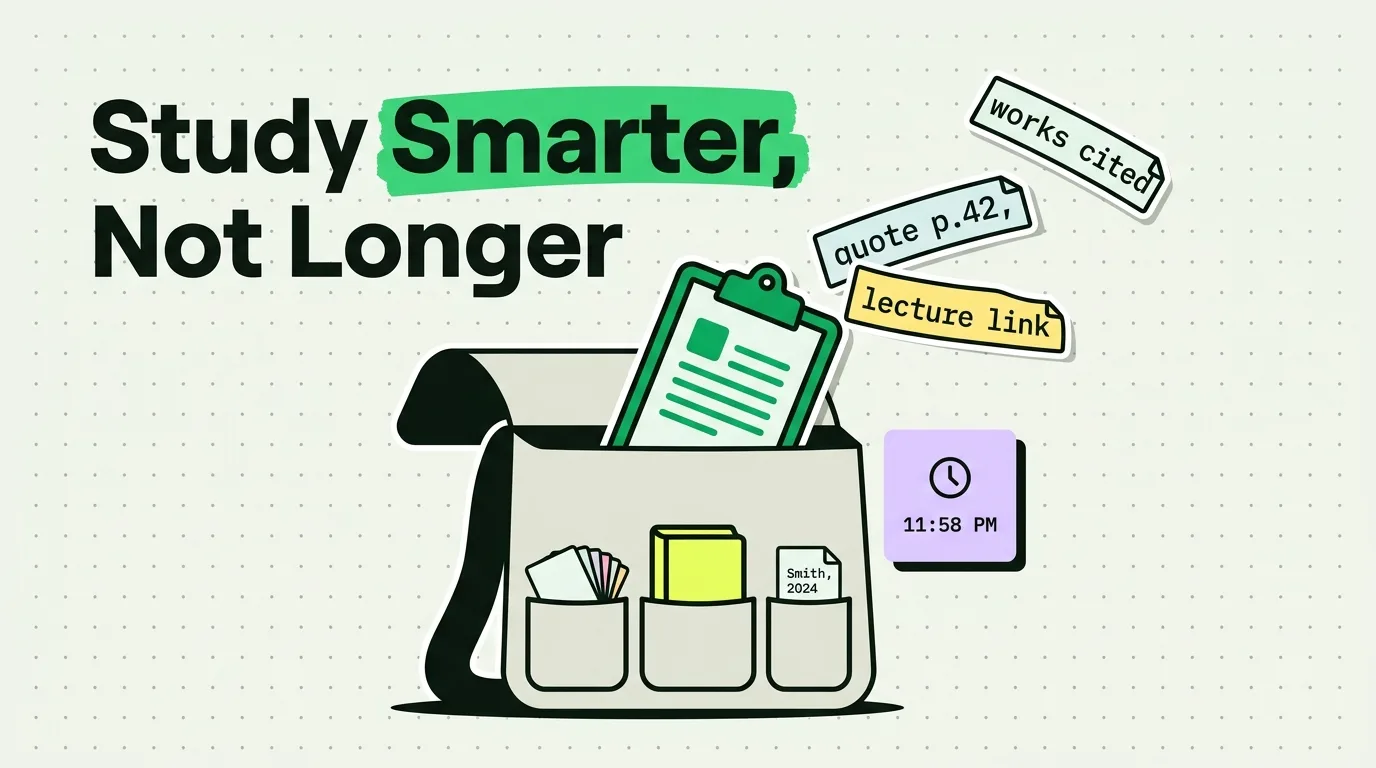
If you are a student and you don't use a clipboard manager, you are manually re-typing or re-copying things you already copied once. Research excerpts, citation formats, professor emails, login portals, course codes, form answers - all of it cycles through your clipboard, one item at a time, getting replaced and lost. ClipboardAI fixes this by keeping everything you copy in a searchable history that does not disappear. On a student budget, start with our roundup of the best free clipboard apps for iPhone.
The Real Student Clipboard Problem
The iPhone clipboard is designed for casual use: copy one thing, paste it somewhere, move on. For students working across Safari, Notes, Canvas, Notion, Google Docs, and Zoom - often simultaneously - this single-item limit creates a specific kind of chaos.
You copy a professor's email. Then you copy the assignment instructions. The email is gone. You go back to find the email. You copy the email again. You now need the assignment instructions. They are gone.
This is not a concentration problem. It is a workflow problem - and a clipboard manager solves it structurally.
The Student ClipboardAI Setup
Step 1: Build Your Research Snippet Pack
Create a folder in ClipboardAI called "Research Templates." Pin these inside it:
## Citation Template (APA 7)
Author, A. A., & Author, B. B. (Year). Title of article.
Journal Name, volume(issue), page - page. https://doi.org/xxxxx

## Citation Template (MLA 9)
Author Last, First. "Article Title." Journal Name, vol. X, no. X,
Year, pp. XX - XX. Database Name, DOI or URL.

## Source Note Template
Source: [Author, Year]
Quote: "[exact quote]"
Context: [what this proves / relates to in my argument]
Where used: [essay section / argument point]
Step 2: Pin Your Recurring Student Admin Blocks
Every student types these repeatedly. Copy them once, pin them:
Student ID: [your ID]
Canvas Login: [your email]
Department: [your department]
Advisor Email: [[email protected]]
University WiFi: [network name / portal URL]
Step 3: Set Up Your Essay Writing Flow
When researching for an essay, copy quotes and sources in sequence as you read. Do not paste them yet. By the end of your reading session, your clipboard history contains every quote you considered, in order, ready to paste selectively into your document.
This eliminates the worst research habit: switching between browser and document with every single quote, breaking your reading flow constantly.
Study Session Workflow
| Task | Without ClipboardAI | With ClipboardAI |
|---|---|---|
| Collecting quotes | Copy → switch to doc → paste → switch back → repeat | Copy everything → go to doc once → paste selectively |
| Filling in citation | Re-type author, year, journal each time | Paste from saved citation template |
| Submitting assignments | Re-type student ID into every form | Paste pinned ID in two taps |
| Finding professor's email | Search email app, copy, switch back | Search clipboard history, paste |
| Recovering lost copy | Not possible on stock iOS | Scroll history to find it |
What Not to Store in a Clipboard Manager
This matters: do not copy and store passwords, financial aid numbers, social security numbers, or health portal credentials in a general clipboard manager. Use your password manager (Apple Passwords, Bitwarden, 1Password) for those. ClipboardAI is for text you need to retrieve and paste during study and research - not for sensitive account credentials.
Set ClipboardAI to exclude your password manager app: Settings → Privacy → Excluded Apps.
The 10-Minute Setup That Saves Hours
- Install ClipboardAI on your iPhone and Mac (same Apple ID for sync)
- Enable the ClipboardAI keyboard on iPhone
- Create three categories: Research, Templates, Admin
- Pin your student ID, university email, and citation templates
- Next study session: just copy everything as you read, retrieve from history when you write