
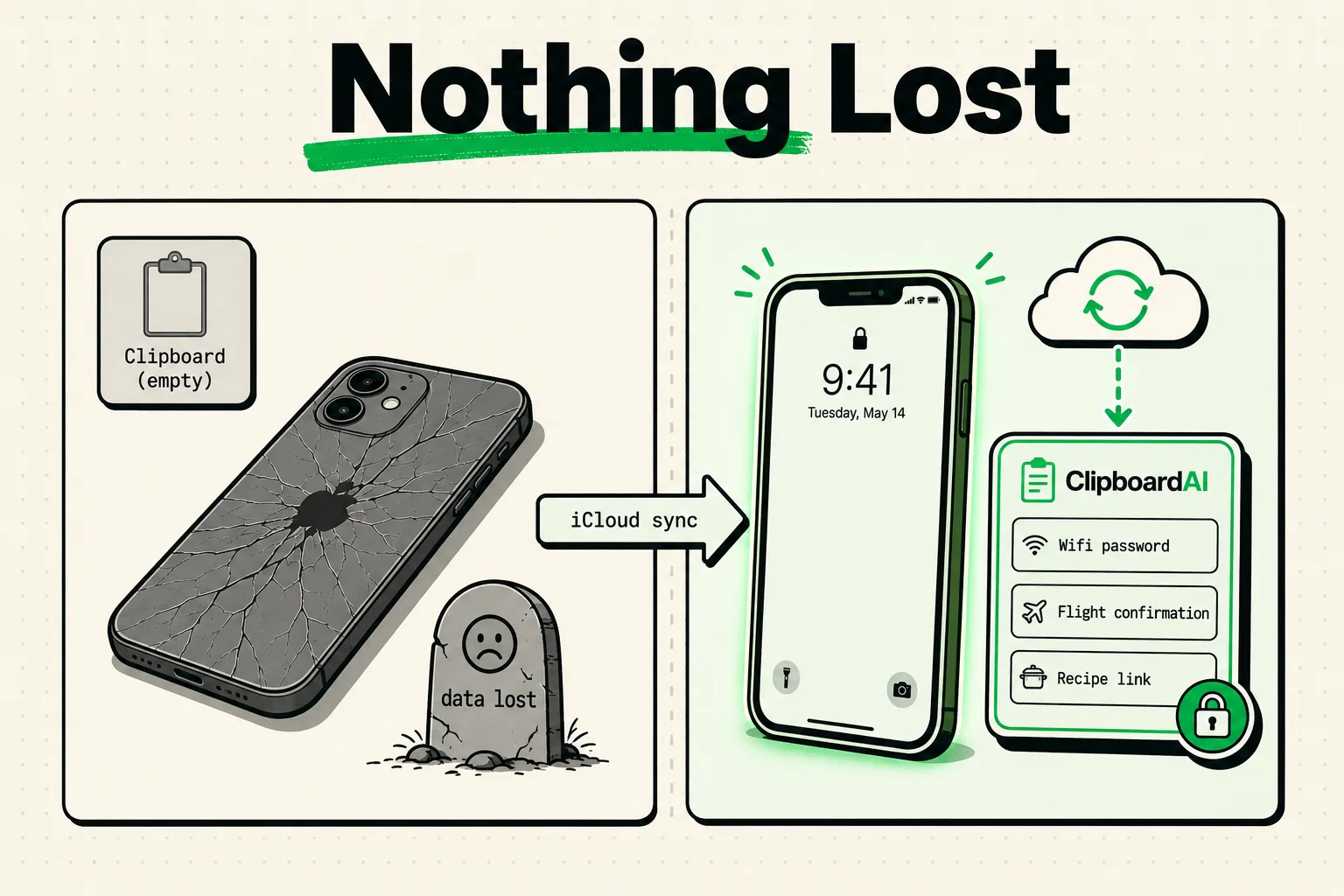
To back up your clipboard history on iPhone, install a third-party clipboard manager like ClipboardAI and enable its built-in iCloud backup or manual JSON export features. Because native iOS does not maintain a clipboard history or back up your temporary copy buffer, a dedicated clipboard manager is required to secure your historical clips across system resets or device upgrades.
We have all experienced this: you spend an hour researching travel itineraries, copying multiple booking links and hotel addresses, only to copy a phone number, overwrite the buffer, and lose all your research text because iOS only holds a single active copy. By default, iOS treats the clipboard as a volatile memory block. Without a backup strategy, your copied research is always one copy away from deletion.
Clipboard Backup Options Comparison
Use this comparison matrix to select the best backup strategy for your workflow:
| Backup Method | Setup Time | Security & Encryption | Recovery Process | Best Suited For |
|---|---|---|---|---|
| iCloud Database Sync | Under 1 Minute | Encrypted in Transit & Rest (linked to Apple ID). | Automatic on new device install. | Daily multi-device workflows (iPhone to Mac). |
| Manual JSON Export | Under 2 Minutes | Local file security (depends on device/cloud target). | Manual import inside settings page. | Offline archival; system migrations. |
| Text File Logging | Under 5 Minutes | Dependent on notes app security settings. | Open text file in editor. | Light research logs and links. |
| Pinned Snippet Folders | Under 1 Minute | Protected from local auto-clean scripts. | Access via custom keyboard. | Long-term text assets (templates, payment keys). |
Why Native iOS Offers No Clipboard Backups
The system clipboard (UIPasteboard) is designed to be ephemeral. iOS clears the active clipboard RAM buffer during system reboots or when memory is needed. Apple limits historical logging for three reasons:
- Data Minimization: Keeping a log of everything you copy increases the risk of exposing sensitive data.
- Credential Safety: If you copy a password, iOS expects it to be overwritten quickly. A permanent log could expose it.
- RAM Optimization: Storing large image files or PDFs in the clipboard history consumes volatile memory that the OS prefers to keep clear.
To preserve your data, you must run a dedicated application that saves your copies to a persistent local SQLite database.
Step-by-Step setup: Automatic and Manual Backups
Method 1: Enable Automatic iCloud Backup in ClipboardAI
iCloud backup is the easiest way to secure your history across device upgrades.
- Open the ClipboardAI app.
- Navigate to Settings > Sync & Backup.
- Toggle on Sync via iCloud.
- Make sure your iPhone's system settings allow iCloud Drive access for the app (Settings > [Your Name] > iCloud > Saved to iCloud > check ClipboardAI).
- Your clipboard history will now sync silently to your personal iCloud database, making it available on your iPad and Mac.
Method 2: Export a Manual Database Archive
If you are migrating to a new device or want an offline backup file:
- Open ClipboardAI and go to Settings > Data Management.
- Tap Export History.
- Choose JSON or CSV as the export format.
- Save the file to your local Files app or upload it to an encrypted storage volume.
- To restore this data on a new device, go to the same settings page and tap Import History.
Step-by-Step: Logging Clipboard Items to an Apple Note
If you want a simple plain-text log of everything you copy during a research session, you can build a system automation:
- Open the Shortcuts app on your iPhone.
- Go to the Automation tab and tap + to create a new automation.
- Set the trigger to App Close (e.g., when you close Safari or Chrome). Set it to run immediately.
- Add the action Get Clipboard.
- Add the action Append to Text File.
- Set the output to append your clipboard text to a note in your Apple Notes app named "Research Log".
- Toggle off "Ask Before Running".
Now, every time you minimize your browser while researching, your copied links and text will be logged into your notes file.
Honest Caveats & Privacy Risks
Maintaining clipboard backups requires strict security precautions:
- The Shared iCloud Risk: If you sync your clipboard history via iCloud and share your Apple ID with a family member or coworker, they can view your copied clips via Universal Clipboard. Never share Apple IDs.
- Plain-text Exposures: Exporting your history database as a CSV or JSON file saves your data in plain text. If you save this file to a shared Google Drive folder, anyone with access to that folder can read your historical data.
- Auto-Delete Conflicts: If you set an Auto-Delete Old Clips policy in ClipboardAI (e.g., delete history after 30 days) and enable iCloud sync, the deletion will sync across all your devices. Wiping it locally wipes it from your cloud backups as well.
Where ClipboardAI Fits
ClipboardAI is designed specifically to manage this database loop safely. By saving your clipboard history locally in a sandboxed SQLite database, it keeps your data off public servers.
When you enable iCloud sync, the data is encrypted during transit and stored securely in your private iCloud container, ensuring that only your authorized devices can read it. It bridges the gap between native iOS constraints and the need for data protection.
Frequently Asked Questions
Will backing up my clipboard history save images?
Yes. ClipboardAI can save and sync images, screenshots, and rich formatting text. However, image files consume significantly more storage space in your database than plain text.
Can I password-protect my clipboard history backup?
Inside ClipboardAI, you can enable Face ID or Touch ID protection to lock the app itself. This prevents anyone who unlocks your phone from viewing your local history database or backup settings.
What should I do if my iCloud sync fails?
Make sure your iPhone is connected to Wi-Fi, iCloud Drive is enabled in your system Settings, and you have sufficient iCloud storage space. If sync latency persists, restart the app to force a sync sweep.